How to Do Photogrammetry

As technology has improved, archaeologists have made increasing use of digital tools to help them record what they excavate in the field. One technique is photogrammetry. This involves taking lots of photos of an object or place from different angles and then using software to build a 3D model from those images. More powerful and expensive software can even be used to accurately measure the dimensions of what has been photographed.

In this activity, we are going to try out some software that can be downloaded at home. This example was made using a free trial of Agisoft Metashape as we found it to be both consistent and easy to use. However, there are other free software examples available such as 3DF Zephyr which usually have tutorials available on their websites and/or Youtube, so feel free to experiment.

Katy Whitaker – North Wiltshire YAC

Adult supervision is not required for this activity.

Type of Activity : Digital

How many people required (minimum) : 1

Safety Measures : Check with an adult before uploading your work online.

Make sure you have adult supervision if you are using sharp tools to craft anything to photograph.

Ages : 8+

Step 1

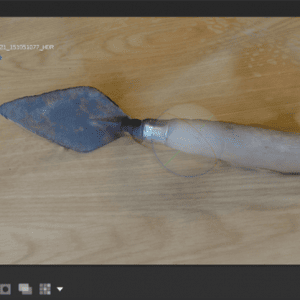
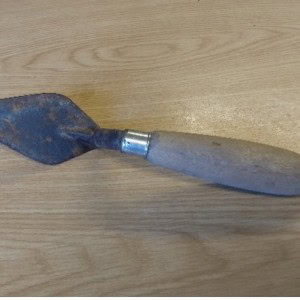
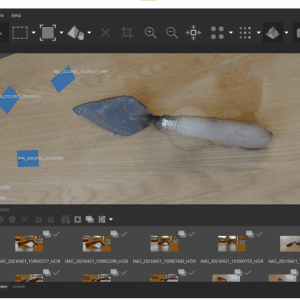
Firstly, pick out which object you want to turn into a 3D model. It can be anything you like from a family heirloom to a piece of pottery. In this case, I’ve used my old archaeological site trowel.

Step 2

Set your object on a flat, stable surface like a clear table. Ideally, try and have it in a room with consistent lighting as having lots of shadows/darkened areas will make it harder for the software to work well.

Step 3

Take your photos! Try to capture as many different angles as you can and get a mix of close-ups and far away shots. The more photos you have, the better. Also, remember not to move the object until you’re completely finished. If your 3D model has any gaps, you might be able to fix this by taking some extra photos later.
Step 4

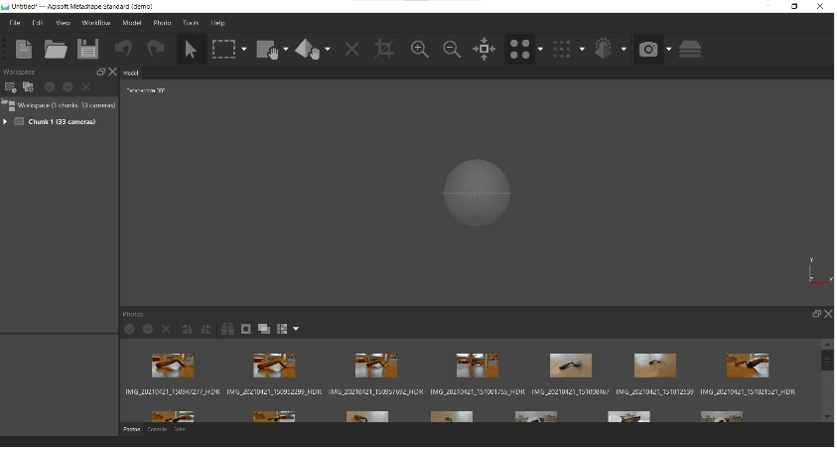
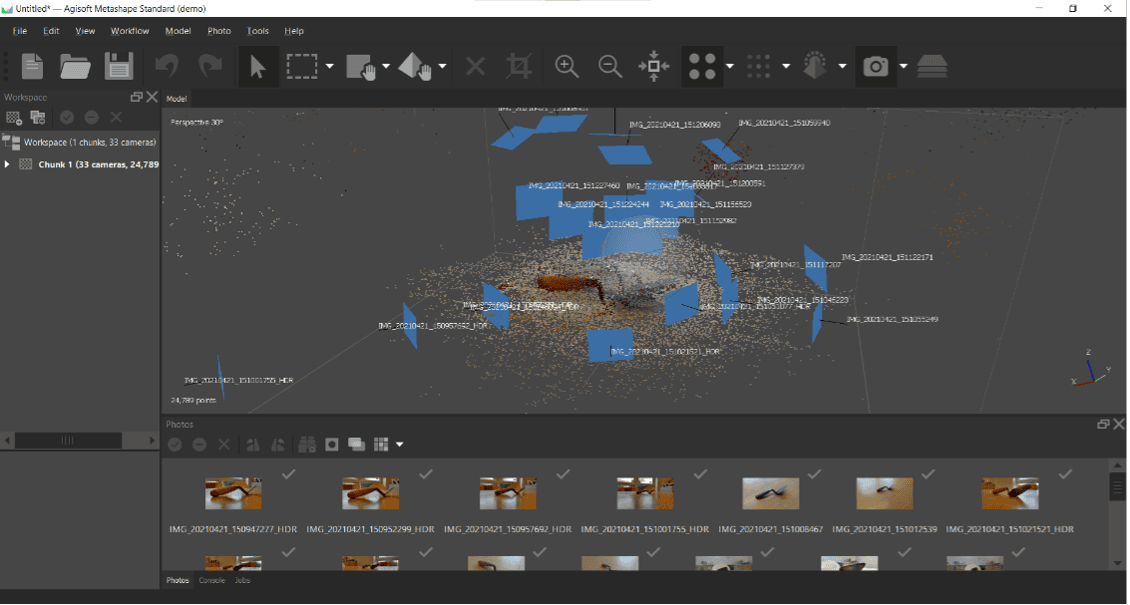
Download your photos onto your computer. Open up Agisoft Metashape. Clicking on the grey sphere in the centre will allow you to rotate your view of the model. You can also scroll the middle mouse wheel to zoom in/out and hold the middle mouse button to pan.
Step 5

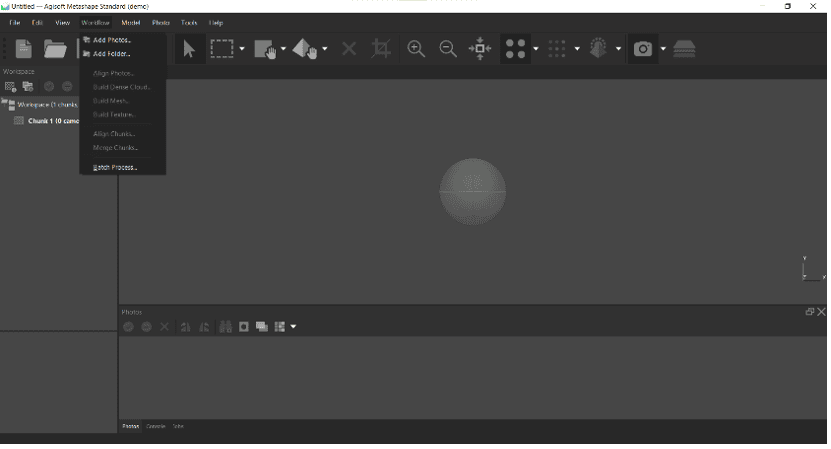
Go to the Workflow tab in the top left and click “Add Photos” so you can select all the pictures you took.
Step 6

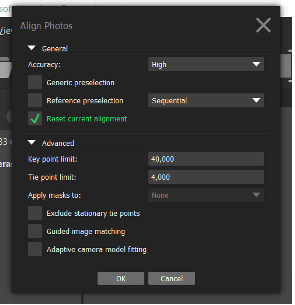
Now we can start to build the model. Firstly, go back to “Workflow” and click “Align Photos”. These settings should work fine for your first project.
Step 7

(Additional image from step 6).
Step 8

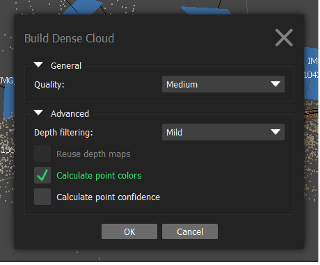
Now we need to start connecting all these little dots together. Go back to “Workflow” and click “Build Dense Cloud” and use the following settings.
Step 9

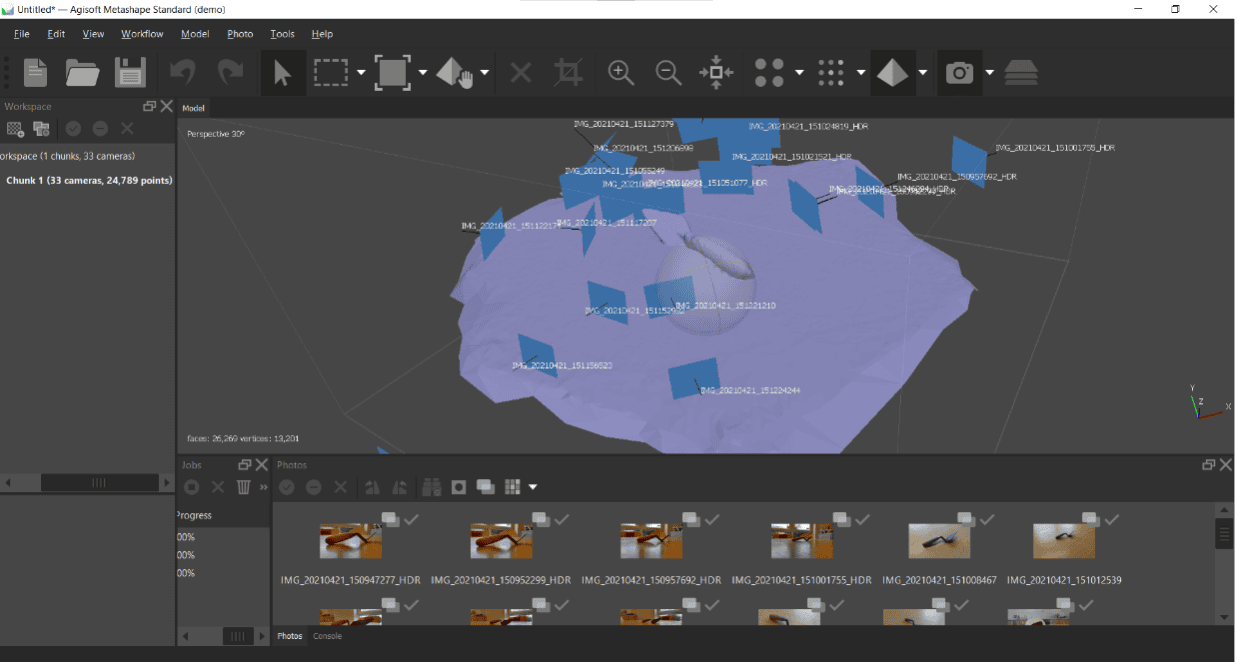
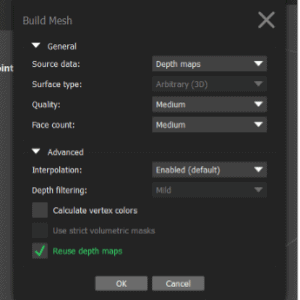
Next, go to “Workflow” and “Build Mesh” with the following settings.
Step 10

(Additional image from step 9).
Step 11

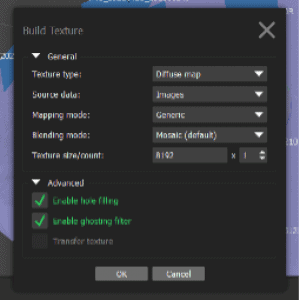
Finally, we can add the texture to the model. Once again, it’s “Workflow” followed by “Build Texture” with the following settings. To add or reduce the level of detail, you can change the “Texture count” value between 4096-16384. However, increasing it above 10,000 may result in your computer not being able to complete the model.
Step 12

(Additional image from step 11).

Step 13

Once your model is done, you can try exporting it. Note that this can only be done with Agisoft Metashape if you are using the free trial or paid versions. The demo version does not allow you to save your work but is good for trying out the software.

Step 14

One place you can export your model to is Sketchfab, a site for sharing 3D models. This can be done in Metashape by clicking “File” and then “Upload Data”. Another YAC group has uploaded their biscuit recreation of Stonehenge. You can check it and other models out here: https://sketchfab.com/3d-models/biscuit-stonehenge-f42d585fdf10415c90c22109d65dcfdf

Step 15

Photogrammetry can also be used to recreate historic locations. Next time you visit a site, see if there is a spot you can take photos to build a model from.